

How to Integrate Zoom with ClickFunnels 2.0 for Appointments
Hey everyone! In this guide, I'll show you how to set up Zoom for appointments in ClickFunnels 2.0. Whether you're hosting one-on-one meetings or team calls, this tutorial will help you integrate Zoom effortlessly. Let's get started!
Step 1: Access the Appointments App
- Open your ClickFunnels 2.0 account.
- Navigate to the Appointments app.
Step 2: Go to Conferencing Settings
- Click on "Conferencing" right under under "Calendar Connections."
- This will take you to the conferencing setup page.
Step 3: Add a New Conferencing Connection
- Click on "Add New Conferencing Connection."
- A new screen will pop up displaying available connections: Zoom, Microsoft Teams, and GoTo.
Step 4: Select Zoom
- Click on "Zoom" from the list of options.
- A window will open to connect your Zoom account.
Step 5: Authorize ClickFunnels to Use Zoom
- Ensure you're logged into the correct Zoom account.
- Click "Allow" to give ClickFunnels the necessary permissions to create calls on your behalf.
Step 6: Confirm the Integration
- After authorizing, you'll be redirected back to ClickFunnels.
- Your Zoom integration is now complete.
Step 7: Set Up Event Types
- Go to your event types in ClickFunnels.
- Select the event for which you want to use Zoom as the conferencing option.
Step 8: Choose Zoom as the Conference Type
- In the event settings, find the "Location Type" and "Conference Type" options.
- Select "Conferencing" and then choose "Zoom" from the dropdown.
Step 9: Default Calendar Connections
- If you're using Google Calendar, it may automatically connect to Google Meet.
- For other calendars like Microsoft Teams, follow the same steps to ensure the correct conferencing type is selected.
Conclusion
That's it! You've successfully set up Zoom for your appointments in ClickFunnels 2.0. This setup will make it easier to manage and host your calls directly through ClickFunnels. If you would like a good visual of this process, please check out the video at the top of this page. Enjoy your meetings!
Howdy, I'm Tyson
Owner Of Repair My Funnel
Growing your service business online shouldn't feel overwhelming or confusing. That's exactly why I created Repair My Funnel.
I've spent years mastering ClickFunnels and digital marketing systems, but more importantly, I've learned how to translate that expertise into simple, clear guidance for business owners who just want their online presence to work. My mission is helping established service businesses build professional websites, effective funnels, and reliable systems that attract and convert more clients without the tech stress.
Here on the blog, you'll discover practical strategies from our proven 5-pillar framework covering everything from building a solid website foundation to creating content that drives organic traffic. Whether you're a coach, contractor, wellness professional, or local service provider, you'll find step-by-step guides and real-world tactics designed specifically for service businesses like yours.
Ready to get actionable insights delivered weekly? Join the Spark & Scale Newsletter where I share my best strategies to help you attract more clients, streamline your systems, and grow your business with confidence.
Featured Articles

In the ever-evolving world of digital marketing, optimizing your funnels for mobile users is crucial. With the majority of traffic coming from mobile devices, ensuring a seamless and efficient mobile experience can significantly impact your conversion rates. Today, we'll dive into how you can elevate your mobile optimization using a Chrome extension that simulates mobile devices and the powerful Chrome Developer Tools.

In this blog you will discover how to create a custom input fields inside of your funnel in ClickFunnels 2.0
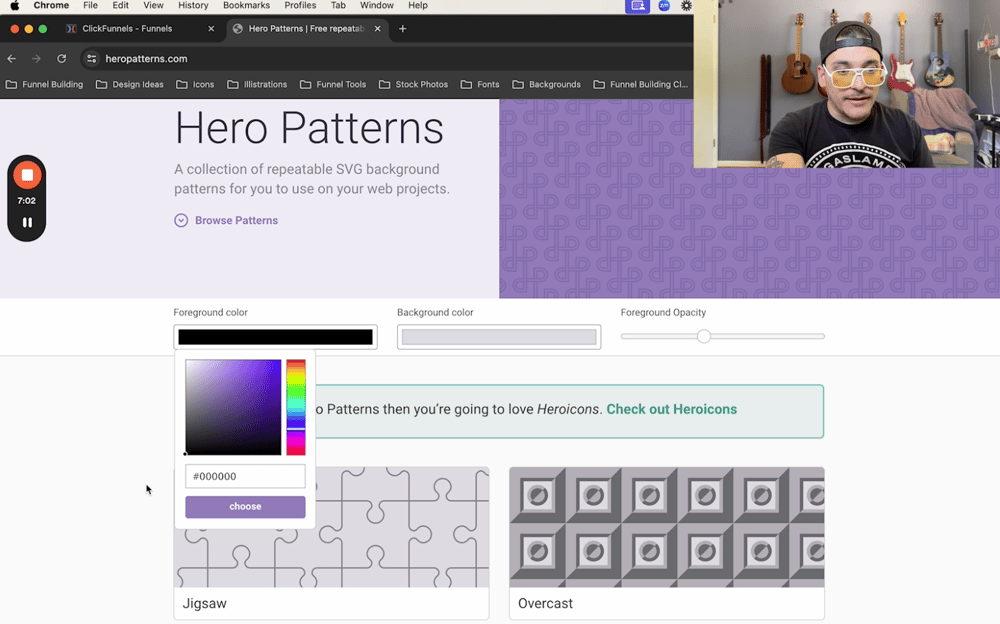
Hey everyone! Devon here with Repair My Funnel, and today we’re taking a look at a tool called Hero Patterns. This tool can be used to take your funnel backgrounds to the next level, and get you out of that spot in your building of wondering how to make your design pop. Let’s get started!
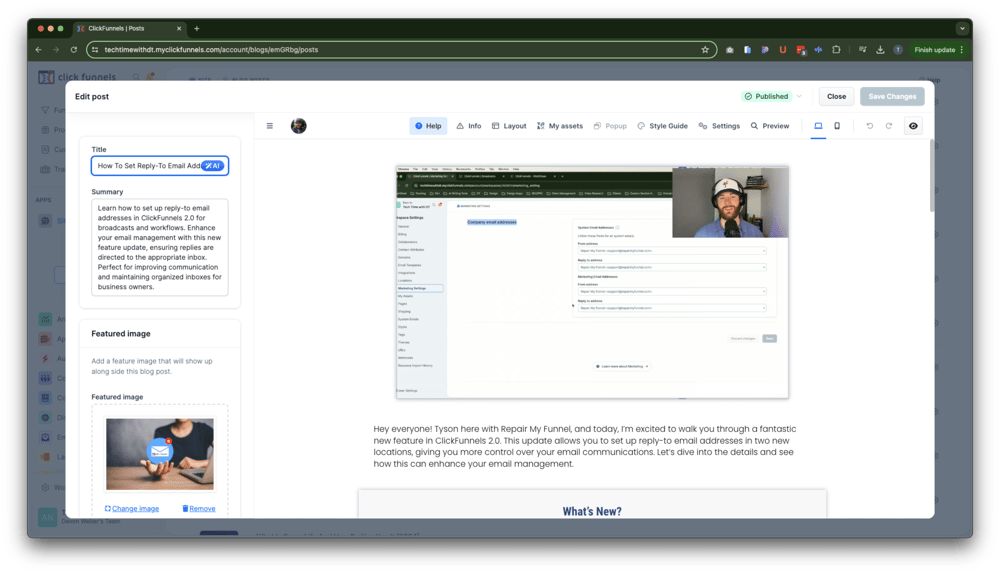
Discover the new blogging feature in ClickFunnels 2.0. Learn how to set up, manage, and customize your blog to enhance your business’s online presence. Perfect for business owners looking to integrate blogging into their marketing strategy.

Latest Posts
Friday, August 23, 2024
Wednesday, August 21, 2024
Monday, August 19, 2024
RepairMyFunnel.com, a DT Designs LLC Product ■ All Rights Reserved © 2024-2025 ■ 1212 5th Ave N, Apt 2, Seattle, WA 98109
Privacy Policy - Terms - Disclaimer - Contact