

How to Create Custom Input Fields Inside of ClickFunnels 2.0

Hey everyone! Devon here with Repair My Funnel, and today, I’m excited to give you an in-depth overview creating custom input fields inside of ClickFunnels 2.0. Let’s dive into what this feature offers and how it can benefit your business.
Why is a Custom Input Field Important
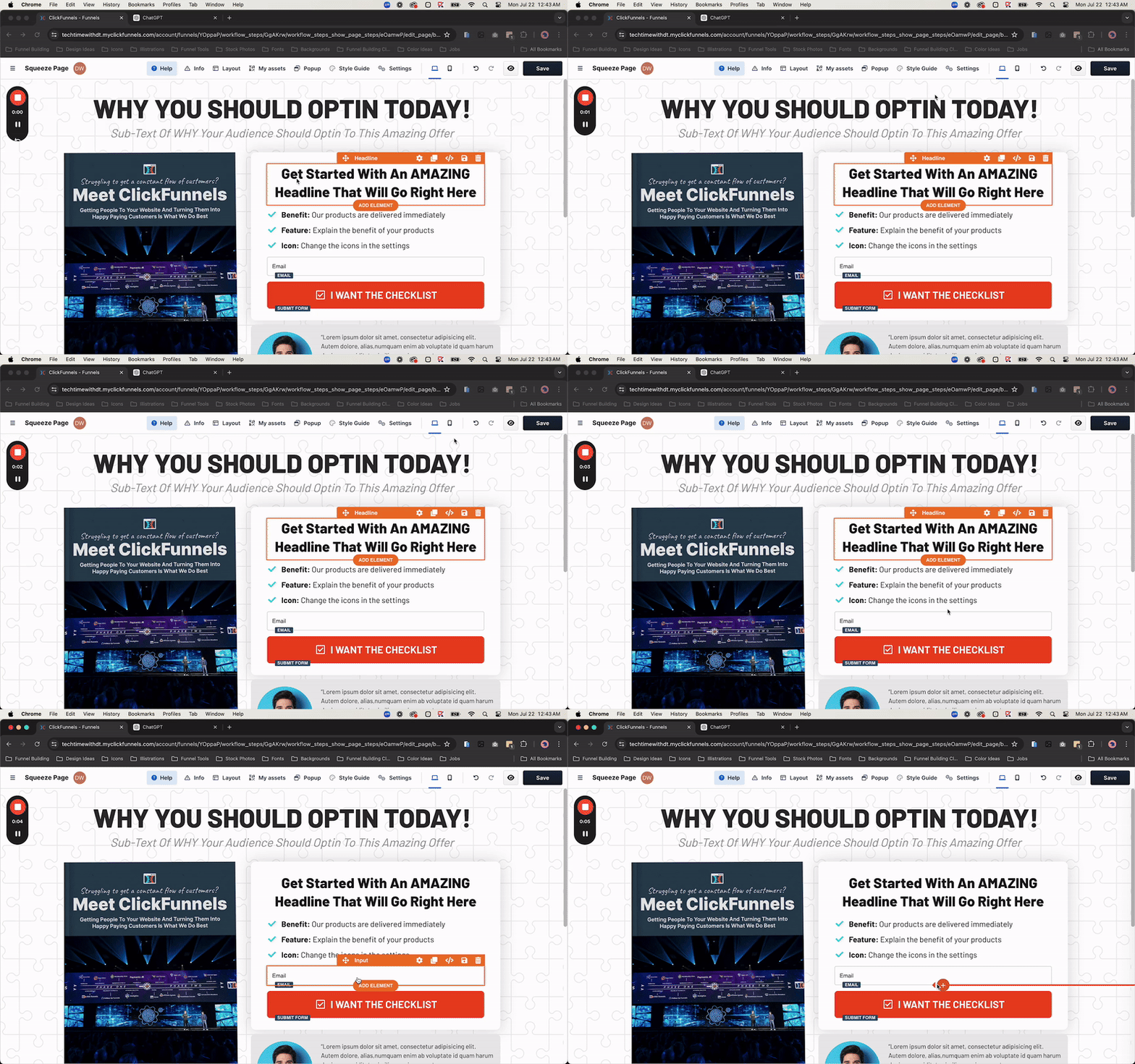
Creating custom input fields in ClickFunnels 2.0 can greatly enhance your funnels by collecting specific information from your visitors. This guide will walk you through the process step-by-step, ensuring you set up your input fields correctly to capture all necessary data.
Steps to Take When Creating a Custom Input
- Go to Page Editor:
• Choose the page where you want to add the custom input field. Click on “Edit” option to open the page editor. - Add Input Element and Choose Type:
• From the list of available elements, select “Input” from the form elements section. Drag and drop this element into your chosen section.
• Under Input Type be sure to select "Custom Type".
• Next to the Custom Type option be sure to name your custom input field. - Important Note
• Be sure when naming your custom input field that you do not include any special characters to ensure that the input field can be registered by the system when submitting information on your funnel.
Funnel Testing and Previewing Your Contact Profile
- Make Sure Your Funnel Has These Elements
• In order for your information to submit on a funnel, aside from your custom input field be sure that there is an input field set to "Email Address" and a but set to the action of "Submit Order/Form. - Testing Your Funnel:
• When testing your funnel I always recommend using an Incognito Window to eliminate possibilities of cache in your browser (Command + Shift + N) on a Mac, (Control + Shift + N) on a PC. - View Contact Profile
• Once you've tested your funnel, you can now view your contact profile to check on the data submission.
• You can either go to Customers>Contacts then the contact should be the first one showing.
• You can use the Global Search function using the magnifying glass on the top left of your account from any point of the dashboard.
Below you will see an example of a contact profile that has custom input data, so you know what to look for. Keep in mind, sometimes it can take up to 10 minutes for the input data to show in the contact profile, so if you don't see it right away, check back in a bit.

Final Thoughts
The custom input feature inside of ClickFunnels 2.0 is an excellent way to gather more specific data from your customers past basic info such as name and email. This tool if used correctly can really customize the customer journey and overall experience in your funnels.
If you have any questions or need further assistance, please feel free to reach out to us at support@repairmyfunnel.com. Don’t forget to subscribe to our Tech Time newsletter for more tips and updates delivered every Monday!

Howdy, I'm Tyson
Owner Of Repair My Funnel
Growing your service business online shouldn't feel overwhelming or confusing. That's exactly why I created Repair My Funnel.
I've spent years mastering ClickFunnels and digital marketing systems, but more importantly, I've learned how to translate that expertise into simple, clear guidance for business owners who just want their online presence to work. My mission is helping established service businesses build professional websites, effective funnels, and reliable systems that attract and convert more clients without the tech stress.
Here on the blog, you'll discover practical strategies from our proven 5-pillar framework covering everything from building a solid website foundation to creating content that drives organic traffic. Whether you're a coach, contractor, wellness professional, or local service provider, you'll find step-by-step guides and real-world tactics designed specifically for service businesses like yours.
Ready to get actionable insights delivered weekly? Join the Spark & Scale Newsletter where I share my best strategies to help you attract more clients, streamline your systems, and grow your business with confidence.
Featured Articles

Learn how to efficiently navigate your ClickFunnels 2.0 courses using the new search feature! This quick tutorial shows you how to search for specific lessons and content within your course, making it easier than ever to find what you need.

Learn how to test your free courses in ClickFunnels 2.0 with our detailed, step-by-step guide. Ensure a seamless experience for your students by enrolling as a test contact, exploring course content, and resolving any potential issues before your course goes live. Perfect for ClickFunnels 2.0 users looking to optimize their course offerings.

Learn how to automate your marketing efforts by triggering workflows from broadcast emails in ClickFunnels 2.0. This step-by-step guide covers everything you need to know, from setting up triggers based on email activity to practical applications that boost engagement and streamline your funnel processes.

Learn how to convert your videos into high-quality GIFs using EZGif with our comprehensive step-by-step guide. Discover tips on optimizing GIF size, adjusting frame rates, and enhancing your content for faster load times and better user engagement.

Latest Posts
Tuesday, October 01, 2024
Monday, September 30, 2024
Monday, September 30, 2024
RepairMyFunnel.com, a DT Designs LLC Product ■ All Rights Reserved © 2024-2025 ■ 1212 5th Ave N, Apt 2, Seattle, WA 98109
Privacy Policy - Terms - Disclaimer - Contact